Content › Uploads & media
Introduction
Content
Using content
Plugins
Recipes
Uploads & media
What you'll learn
The media library, its folders and file types, image sizes, file limits, and storing files on disk or S3, Cloudflare R2 and MinIO.
Before this page: Fields.
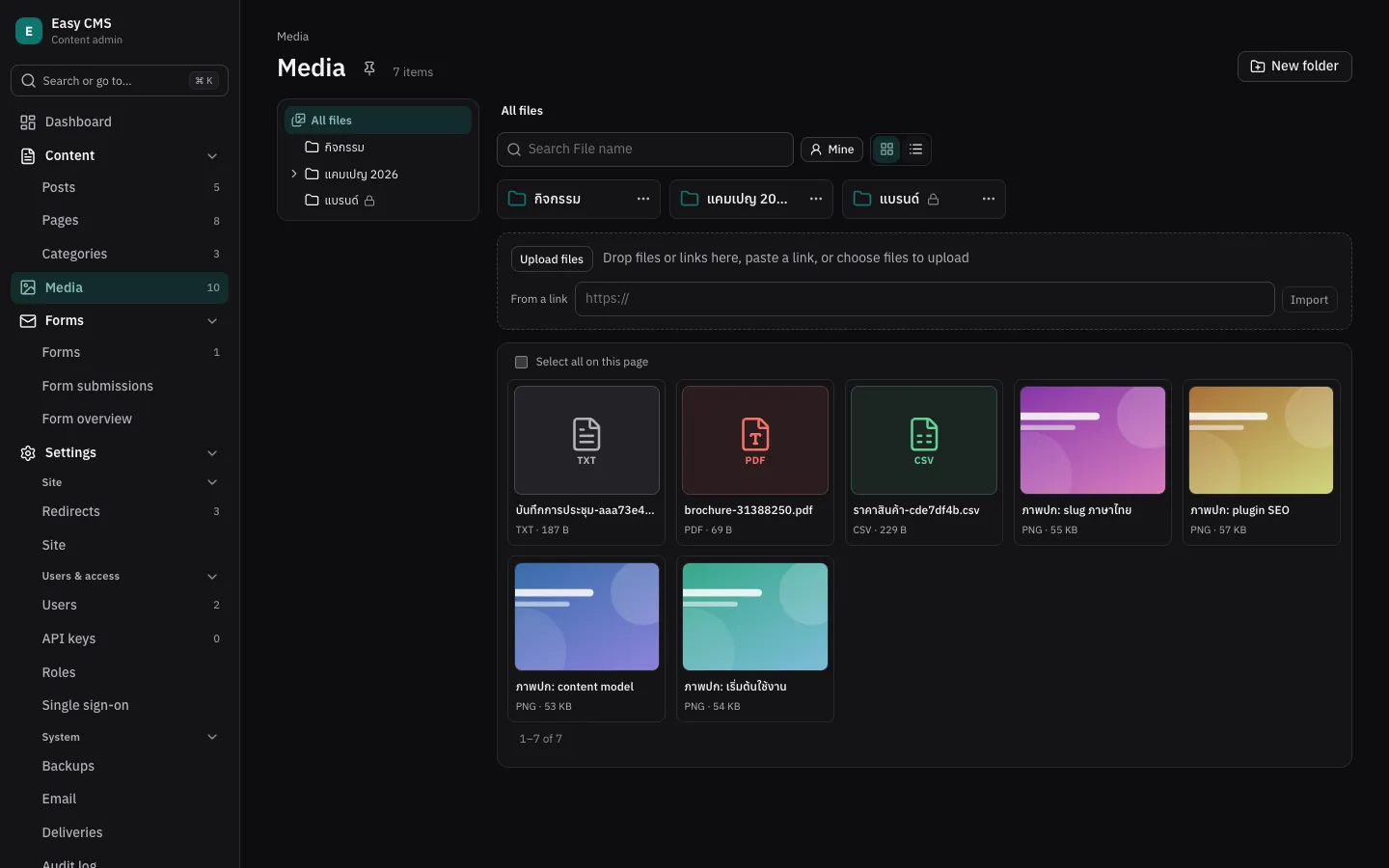
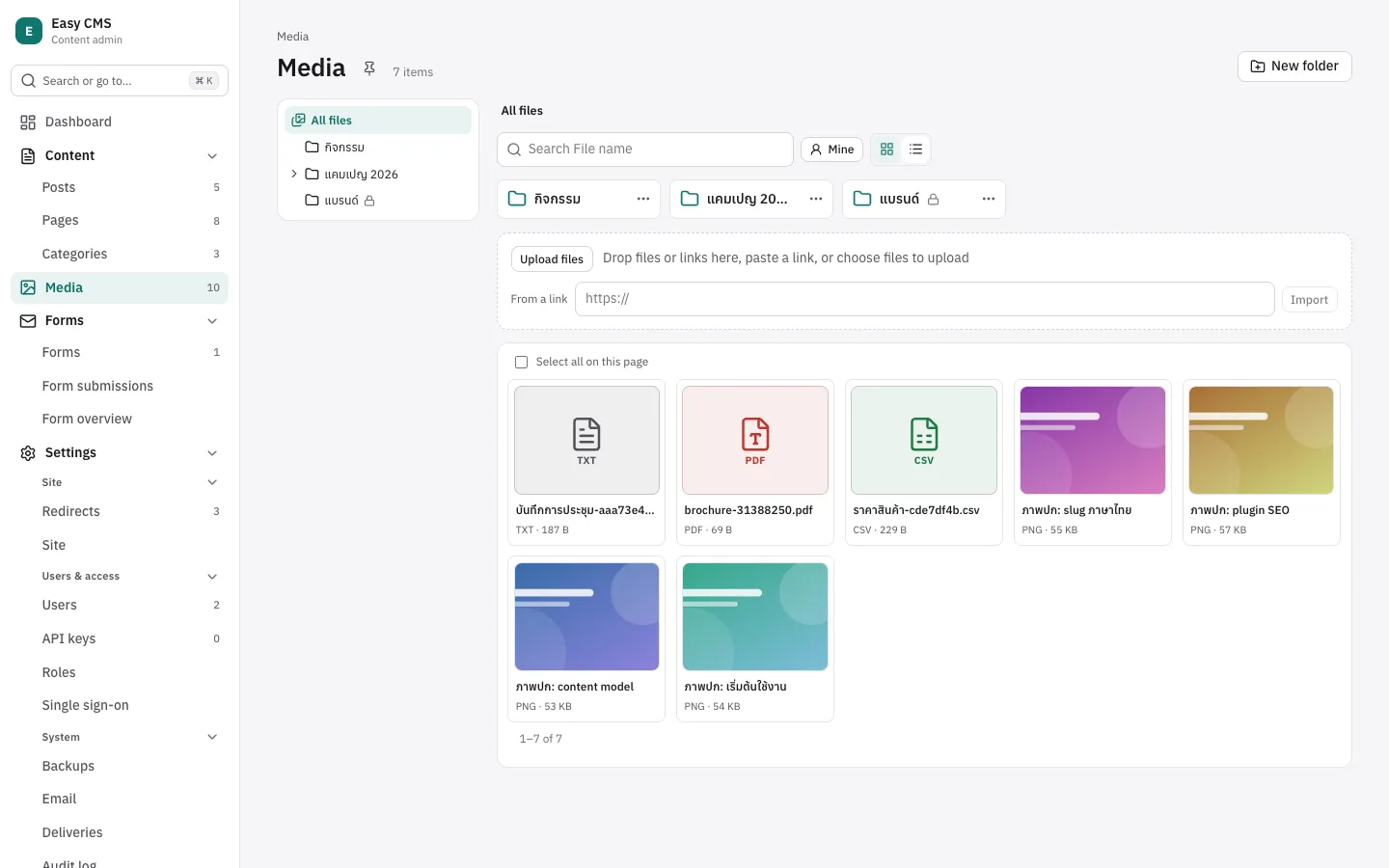
Files live in the built-in media collection. Link them with upload fields:
{ name: 'cover', type: 'upload' }Editors upload in the admin's Media library or from an upload field's picker: choose or drop
several files at once. They upload three at a time, each with its progress; a file can be
cancelled, and one that failed tried again. Files larger than upload.maxFileSize are refused
before they are sent. The files just uploaded stay selected, ready to move to a folder.
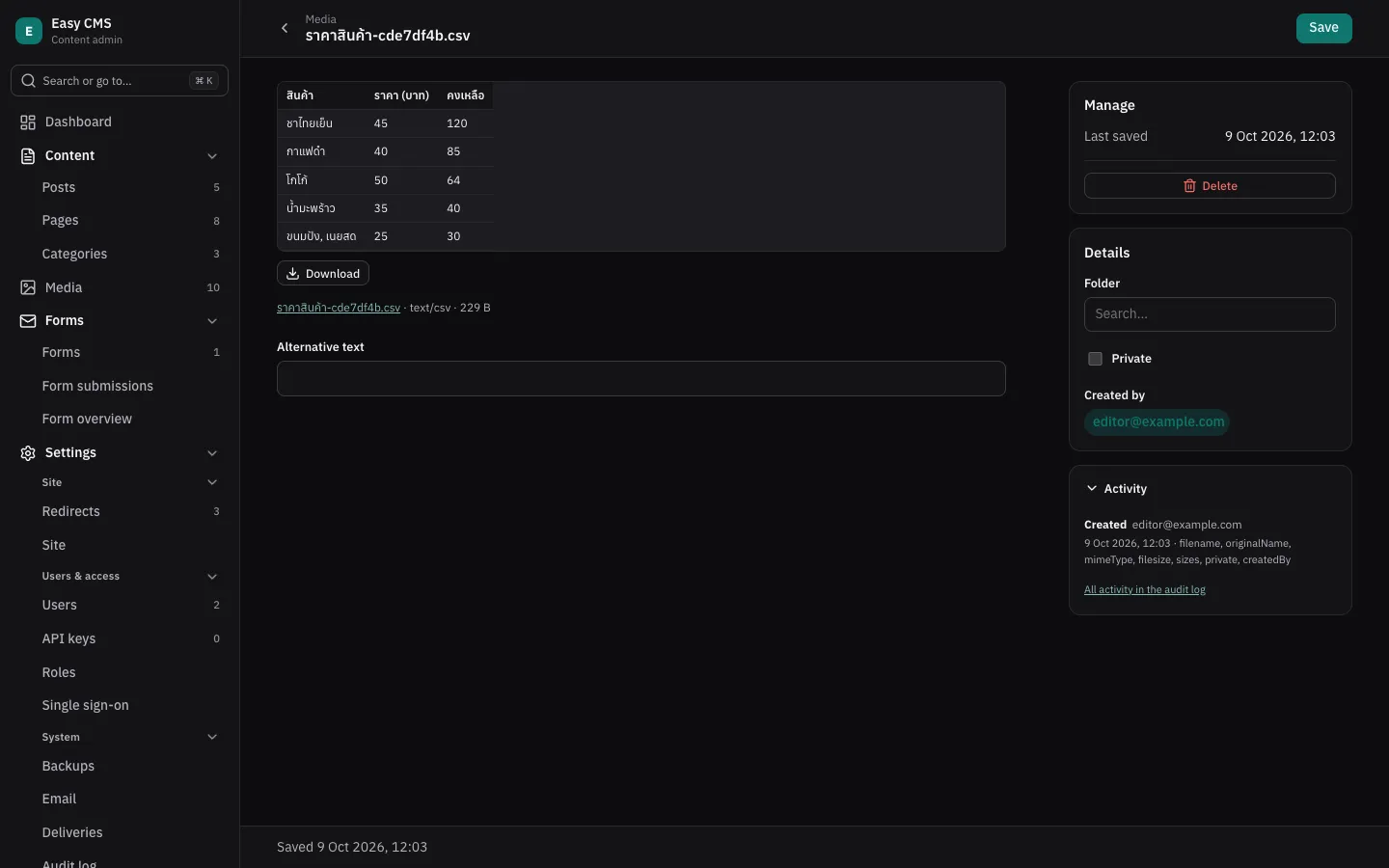
The Media page shows a grid of cards (pictures, or an icon in each file type's color) or, with the switch beside the search, a table. A file's page previews it by type: images, a player for audio and video, the browser's PDF viewer, the start of text and CSV files (CSV as a table, Thai text from Excel read as Windows-874). Word, Excel, PowerPoint and zip files show their icon and a Download button; they are never sent to an outside viewer.
Several files: galleries
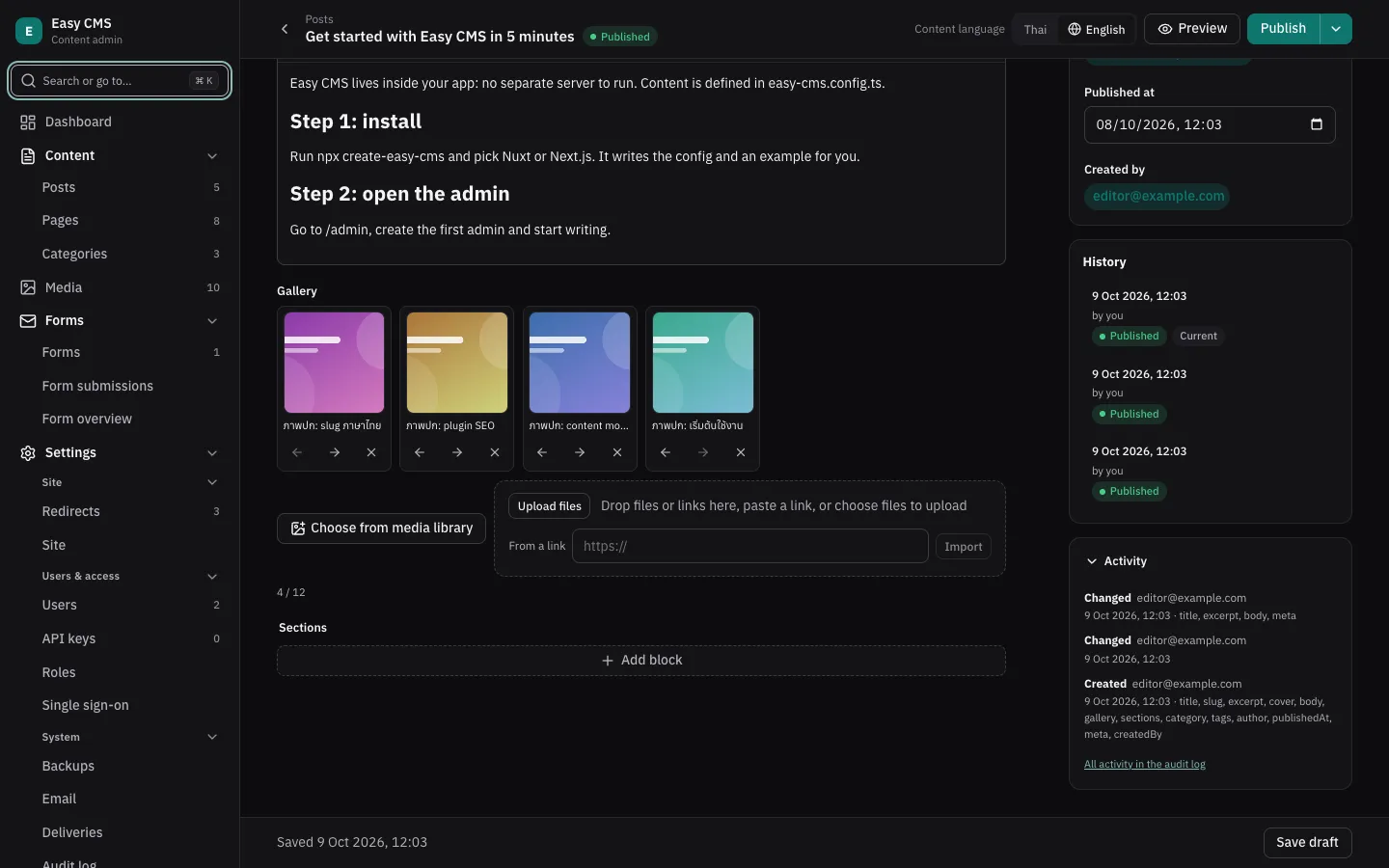
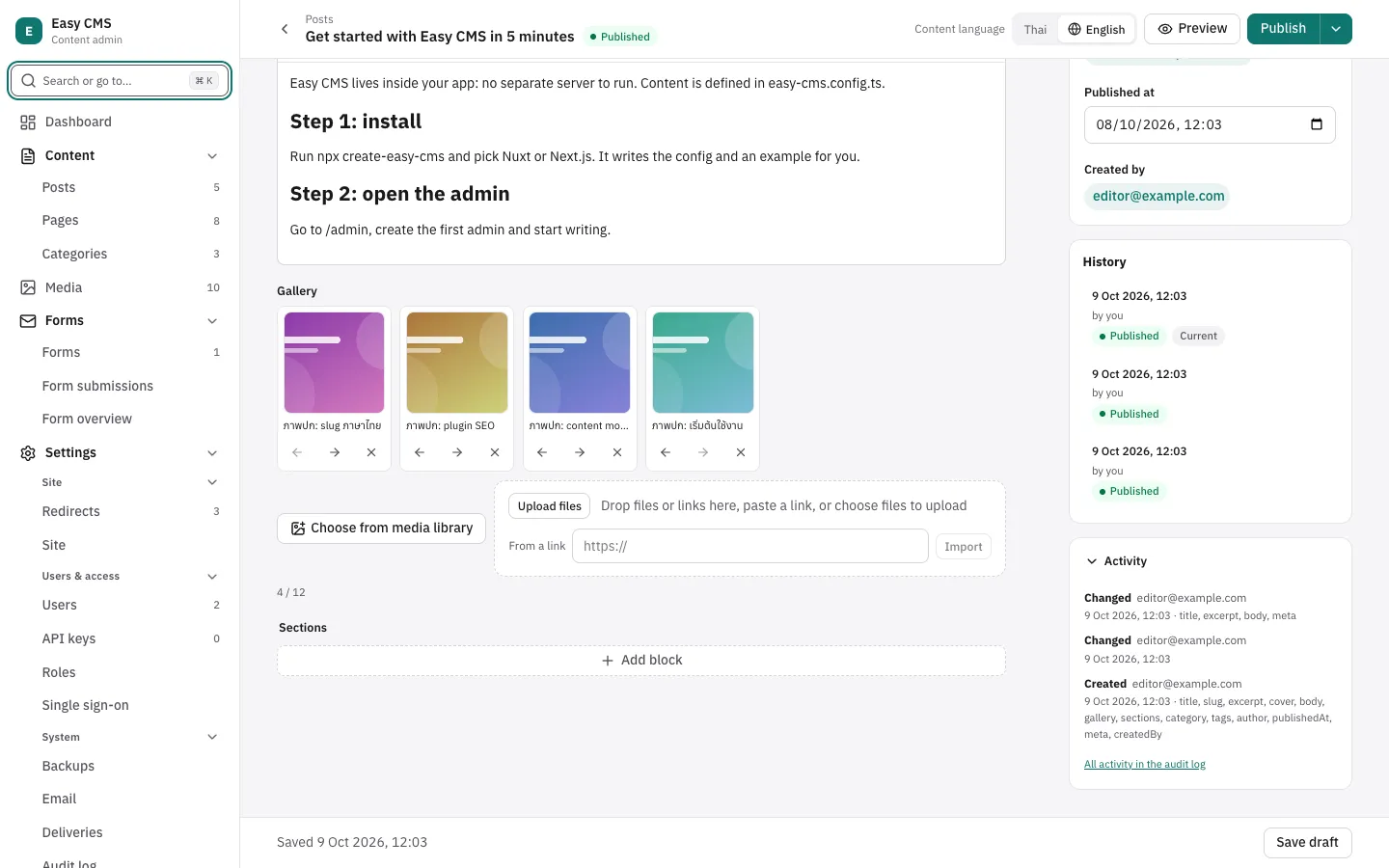
hasMany makes an upload field hold several files, in the order editors arrange them:
{
  name: 'gallery',
  type: 'upload',
  hasMany: true,
  maxRows: 12, // and minRows
  mimeTypes: ['image/*'], // only images: the picker shows only these, and saving checks them
}
In the admin editors drop several files at once, pick several from the library, drag them into
order (or use the arrow buttons) and remove them. Reads return the media documents in that order
(ids with depth: 0):
<ul class="gallery">
  <li v-for="image in post.gallery" :key="image.id">
    <img :src="image.sizes?.thumbnail?.url ?? image.url" :alt="image.alt" />
  </li>
</ul>
Each image's caption is its alt text in the media library. When a caption belongs to this page
only, use an array with an upload and a text field instead: see the
Image galleries recipe.
mimeTypes works on single uploads too, e.g. a cover that must be an image, or
['application/pdf'] for a brochure.
Folders
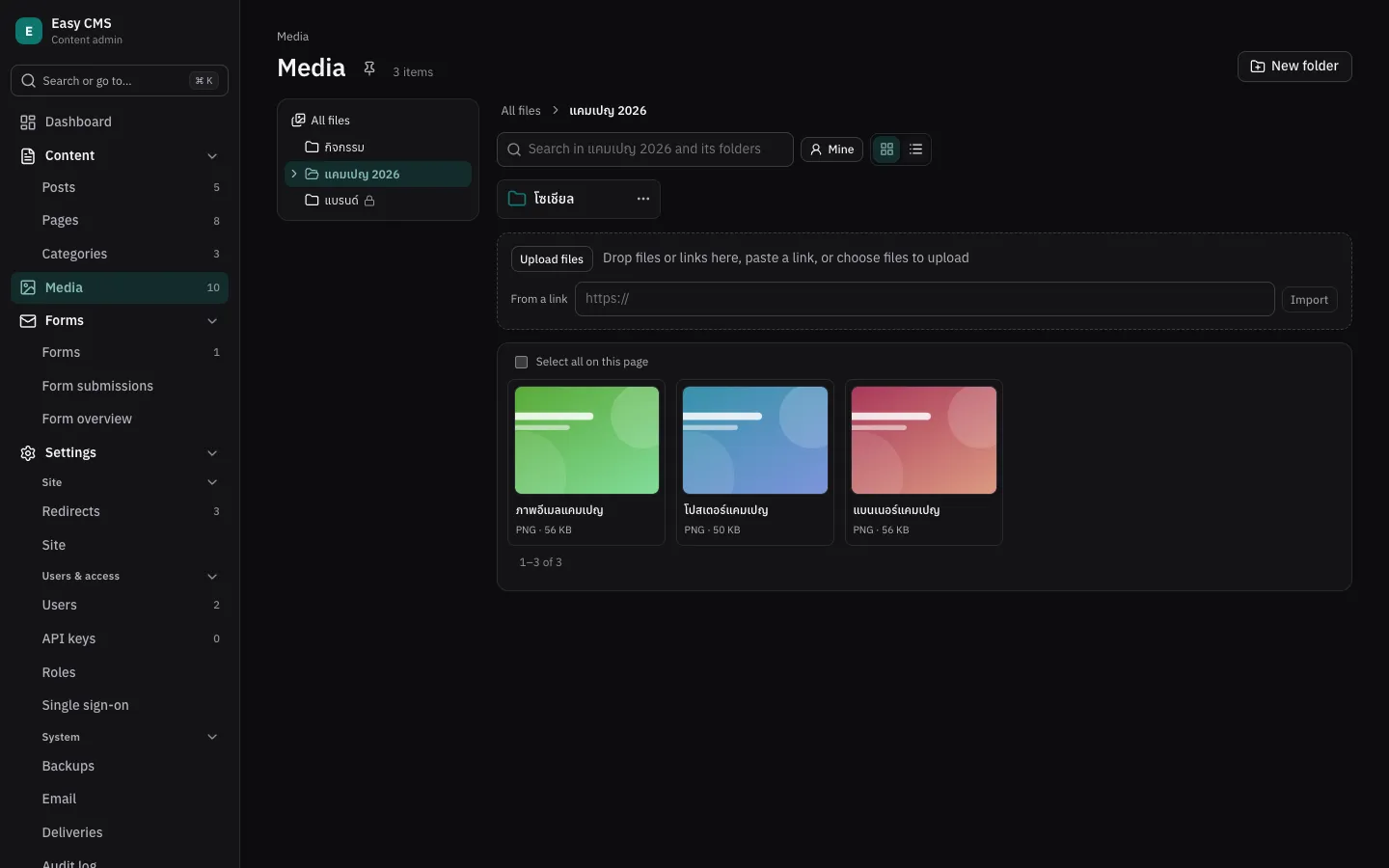
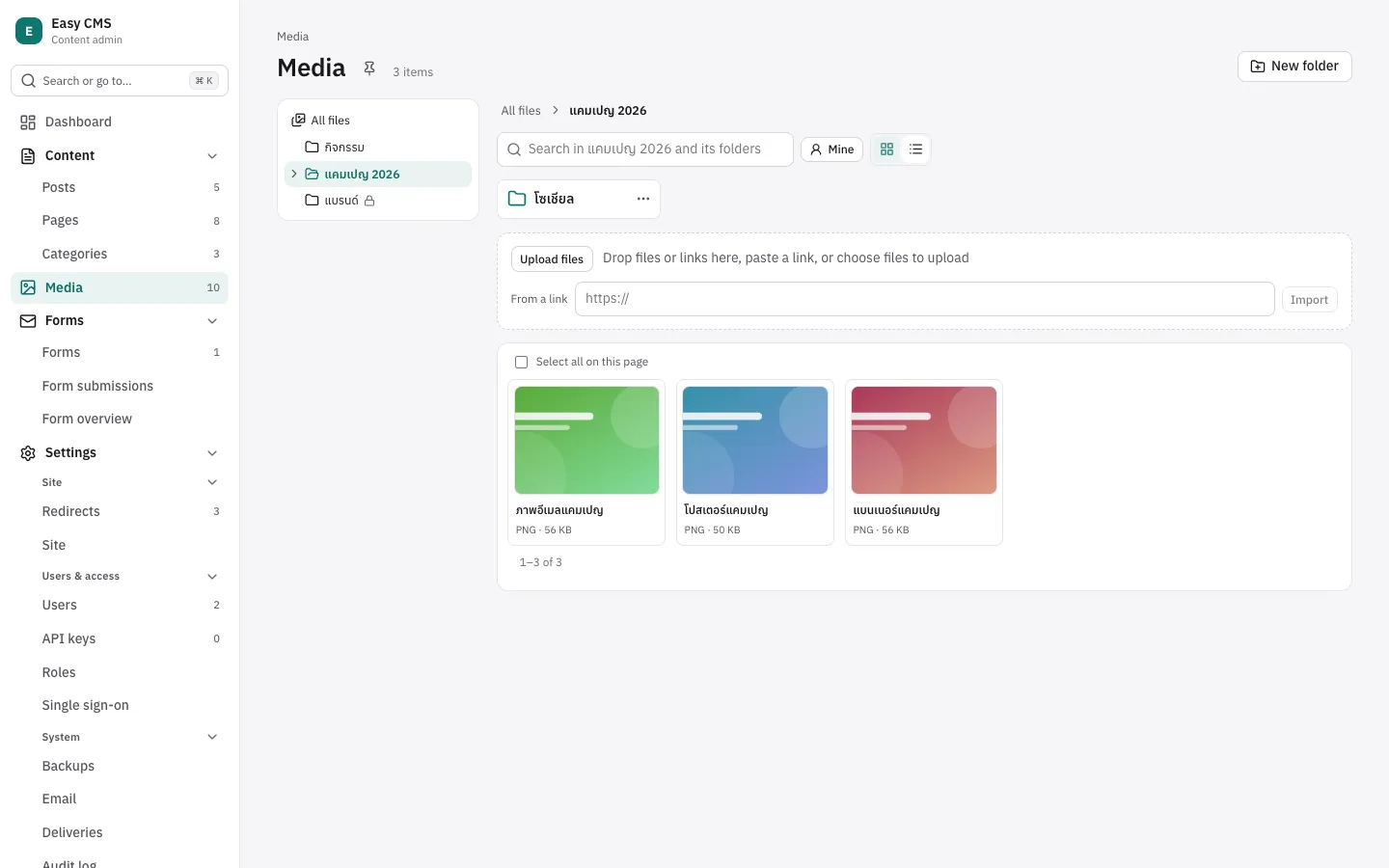
Turn on folders to sort the media library:
upload: { folders: true }The Media page gets a folder tree, a path and the open folder's subfolders above its files. New folder adds one in the open folder; uploads go into it; drag files onto a folder, or select some and use Move to…. A folder's ⋯ menu renames, moves or deletes it. Deleting a folder deletes no file: what it holds moves up to its parent. Searching looks in the open folder and its subfolders. Upload fields' pickers browse folders too, and open where you last were.
A file is in one folder at most. Folders are records in the media-folders collection (name,
parent); files have a folder. Their URLs don't change when they move. Over REST:
GET /api/cms/media?where[folder][equals]=4        files in folder 4
GET /api/cms/media?where[folder][exists]=false    files at the top
POST /api/cms/media-folders  { "name": "Banners", "parent": 4 }
Uploads take a folder too (a form field, or in the JSON with url). Folder names are unique
within their folder, ignoring case. Folders follow the role's Media permissions, and are
visible to signed-in users only.
Who can use a folder
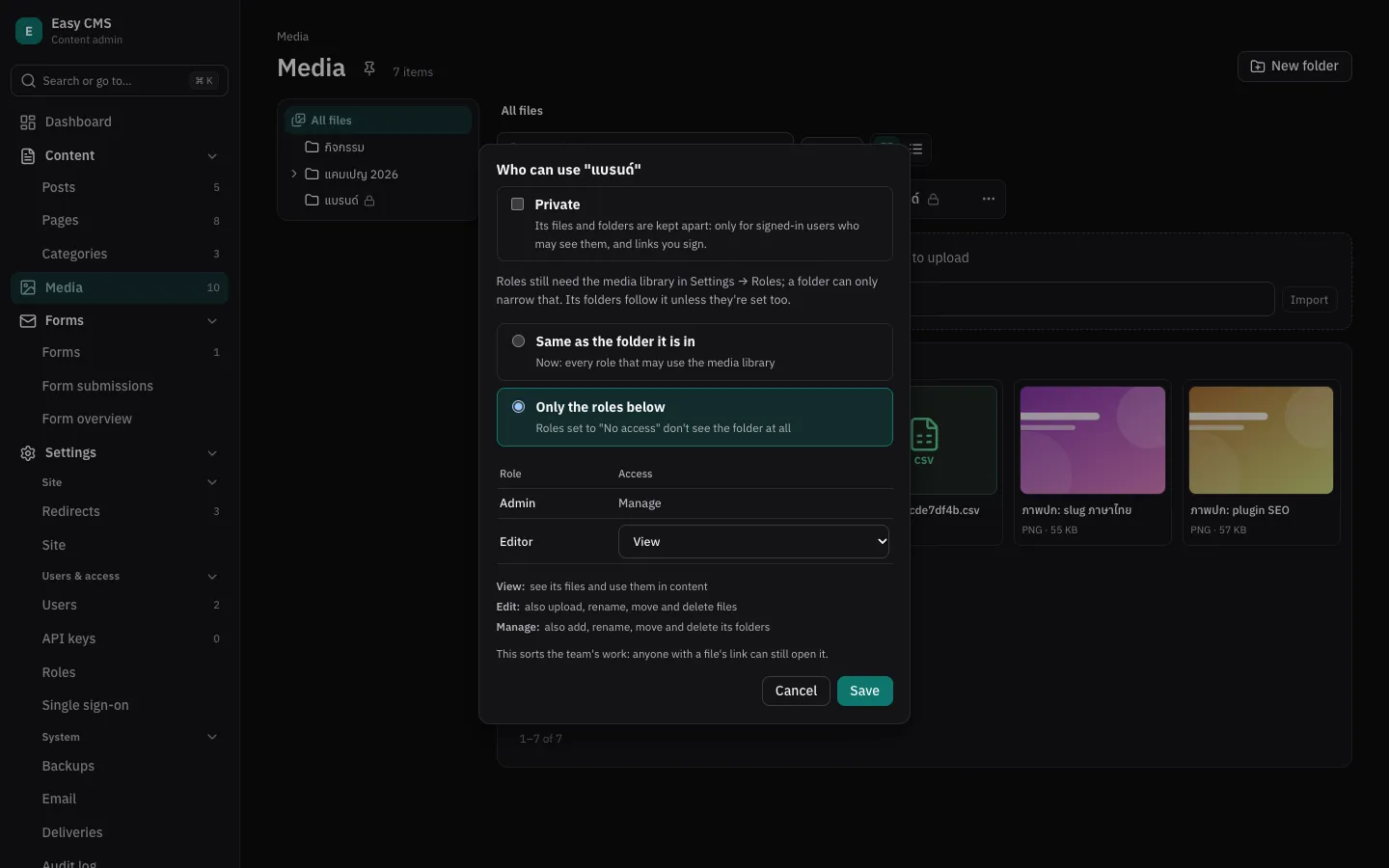
With roles (auth.rbac), admins choose who can use each folder from its menu: Who can
use it. A folder follows the folder it is in until it is given its own list; then each role gets
one of:
| View | sees the folder and its files, and uses them in content |
| Edit | also uploads, renames, moves and deletes files there |
| Manage | also adds, renames, moves and deletes its folders |
Roles not listed don't see the folder. The top level is open to every role that may use Media.
- A folder only narrows what the role may do with Media in Settings → Roles: a role without Delete on Media can't delete files anywhere.
- Admins can do everything, and only they set who can use a folder; changes are in the audit log as Folder access changed.
- API keys use their own Media permissions; folders don't limit them, unless the key is limited to some folders.
- A post can keep a file from a folder its editor can't see: the field shows "A file you may not see", and the file stays unless they change or remove it.
This sorts the team's work
Files in other folders are still public: anyone with a file's link can open it, and requests that are not signed in list them as before. For files that must stay private, use a private folder.
Private folders
An admin ticks Private in a folder's Who can use it: its files and subfolders become
private. They are kept apart from public files and served only through the API, at
/api/cms/media/private/<name>:
- to signed-in users who may see the folder (their role, and the folder's permissions);
- to anyone with a signed link your code makes, until it expires.
Requests that are not signed in don't list private files, and a post's private cover isn't sent to visitors. Moving a file into or out of a private folder (or making a folder private or public) moves it to the other storage and gives it a new URL: the admin asks first, saying how many documents use it.
// A download link for a member, valid for an hour (the default; at most 7 days).
const link = cms.signedMediaURL(report, { expiresIn: '1h' })
// A resized copy:
cms.signedMediaURL(photo, { expiresIn: '30m', size: 'thumbnail' })
Links stop working when they expire, when secret changes, or when the file stops being private.
Public files get their usual URL.
Where private files go. On the local disk and Netlify Blobs, which serve nothing publicly, with
the other files. A storage with public URLs (S3 with publicUrl, a public Vercel Blob store) needs
upload.privateStorage before folders can be private:
upload: {
  folders: true,
  storage: vercelBlobStorage(),
  privateStorage: vercelBlobStorage({ access: 'private', prefix: 'private/' }),
}
Upload fields with a folder
Point an upload field at a folder by its key, and its picker opens there and its uploads land there. The folder is made at the top level the first time it's needed; rename or move it in the admin and the key stays.
{ name: 'banner', type: 'upload', folder: 'banners' }
// Only files from that folder (and the folders inside it), checked when saving:
{ name: 'logo', type: 'upload', folder: 'brand', folderOnly: true }
Turning folders on adds the media-folders table and the media folder and private columns:
npx easy-cms migrate:create media-foldersUploading from code
const media = await cms.upload({ data: bytes, name: 'photo.jpg' }, { alt: 'A photo' })
media.url // "/api/cms/media/file/photo-3f9a2c1b.jpg"
Over REST: POST /api/cms/media with multipart/form-data, the file in file and other fields
(like alt) as text parts.
From a link
Moving content from another site? Let the server download files from their links:
upload: {
  fromURL: {
    // Hosts files may come from: exact names, `*.example.com` for subdomains, or `*` for any.
    allowedHosts: ['images.oldsite.com', '*.cdn.example.com'],
  },
},
The media library, the media picker and galleries then have a From a link field. Editors can also paste a link (or several, one per line) into the upload area, or drop an image dragged from another page. In code:
const media = await cms.uploadFromURL('https://images.oldsite.com/2024/beach.jpg', { alt: 'The beach' })Over REST: POST /api/cms/media with JSON { "url": "https://…", "alt": "…" }.
The file is then checked like any upload: its type from the contents, maxFileSize and the
right to create media. The name comes from the server's Content-Disposition, else the link.
Links reach your network
The server makes the request, from inside your network. So that a link can't reach what isn't public, the server refuses:
- other schemes than
httpandhttps, and links with a password; - private network addresses:
localhost,10.x,172.16–31.x,192.168.x, link-local (169.254.x, where clouds serve their metadata), IPv6 ones too. Names are checked after DNS, and every redirect is checked again (three at most); - hosts not in
allowedHosts, also after a redirect; - downloads over 15 seconds or larger than
maxFileSize.
allowPrivate: true lifts the private address rule, e.g. for an intranet image server. Only
set it if every user who can upload may reach your internal network.
cms.uploadFromURL() without a user is your own code (a migration script, say): it doesn't need
upload.fromURL, and ignores allowedHosts, but still refuses private addresses unless
allowPrivate. Called with user and overrideAccess: false, as the REST API does, it needs
both.
File types
Easy CMS recognizes these from their contents:
| Types | |
|---|---|
| Images | JPEG, PNG, GIF, WebP, AVIF, SVG |
| Documents | PDF; Word, Excel, PowerPoint (docx, xlsx, pptx); OpenDocument (odt, ods, odp); CSV; text |
| Audio | MP3, WAV, Ogg, M4A |
| Video | MP4, WebM, MOV |
| Archives | zip |
Older Office files (doc, xls, ppt) are not recognized. Allow what you need with MIME types,
type/*, or these groups:
upload: {
  // documents: PDF, Word, Excel, PowerPoint, OpenDocument, CSV and text
  // office: docx, xlsx, pptx · archives: zip
  mimeTypes: ['image/*', 'documents', 'audio/*', 'video/*'],
}
An upload field's mimeTypes takes the same names, e.g. { type: 'upload', mimeTypes: ['office'] }.
Large files
Hosts limit how much one request carries: about 4.5 MB on Vercel, 6 MB on Netlify. With S3
(R2, MinIO) or Vercel Blob, the admin sends files larger than 4 MB from the browser straight to the
storage, so only upload.maxFileSize limits them:
POST /api/cms/media/uploadswith{ "name", "size", "type", ...fields }checks who uploads what where, as any upload, and returns a signedticketand where to send the file:upload: { url, method, headers }(valid for 15 minutes), orupload: nullwhen the storage can't take files directly (send it toPOST /api/cms/mediainstead).- The browser sends the file there.
POST /api/cms/media/uploads/completewith{ "ticket" }checks the file in the storage, its size and its type from its contents, and makes the media document. A file that fails is deleted.
From code: cms.createUpload({ name, size }, fields, options) and cms.completeUpload(ticket).
- S3, R2, MinIO: the bucket needs CORS for the admin's origin, allowing
PUTwith acontent-typeheader. - Vercel Blob: nothing to set up.
- Netlify Blobs and the local disk take files through the server: on Netlify, up to about 6 MB.
A file sent but never completed (the page closed in between) stays in the storage, linked from nowhere; on S3, a lifecycle rule can delete what nothing points to.
What happens to a file
- The type is detected from the contents, not the name or the client's Content-Type. It must
match
upload.mimeTypes(defaultimage/*,application/pdf). Only CSV is told apart from plain text by its name. - Size is limited by
upload.maxFileSize(default 10 MB); larger files get413. - Names become
<name>-<random>.<detected extension>, so they are safe and unique, and Thai names stay readable. - Images get
widthandheight. Withsharpinstalled,upload.imageSizescreates resized copies insizes. - Deleting a media document deletes its files.
upload: {
  maxFileSize: 5 * 1024 * 1024,
  mimeTypes: ['image/*'],
  imageSizes: [
    { name: 'thumbnail', width: 400, height: 300 },
    { name: 'wide', width: 1600 },
  ],
}
A media document looks like:
{
  "id": 7,
  "filename": "photo-3f9a2c1b.jpg",
  "originalName": "photo.jpg",
  "mimeType": "image/jpeg",
  "filesize": 184213,
  "width": 2400,
  "height": 1600,
  "alt": "A photo",
  "url": "/api/cms/media/file/photo-3f9a2c1b.jpg",
  "sizes": { "thumbnail": { "width": 400, "height": 300, "url": "…" } }
}
Only alt (and fields you add) can be edited afterwards. Media metadata is readable by anyone and
writable by logged-in users; declare a media collection to change that or add fields.
Serving and storage
Files are served at /api/cms/media/file/<name> with long-lived caching and a sandboxing Content
Security Policy, so an uploaded SVG can't run scripts. PDFs are served without it: browsers won't
show a PDF in a sandbox, and their PDF viewers run apart from your site. Set serverURL for
absolute URLs.
The default storage is the local disk (upload.dir, default uploads/), which needs a persistent
filesystem. On serverless hosts (Vercel, Netlify) and in containers without a volume, use S3.
S3, Cloudflare R2 and MinIO
npm install @easy-cms/storage-s3pnpm add @easy-cms/storage-s3yarn add @easy-cms/storage-s3bun add @easy-cms/storage-s3import { s3Storage } from '@easy-cms/storage-s3'
export default defineConfig({
// …
upload: {
storage: s3Storage({ bucket: 'my-site-media', region: 'eu-central-1' }),
},
})Credentials come from AWS_ACCESS_KEY_ID and AWS_SECRET_ACCESS_KEY (and AWS_SESSION_TOKEN,
AWS_REGION) unless you pass accessKeyId / secretAccessKey. They are read when the CMS
starts, so building without them works.
| Option | Default | |
|---|---|---|
bucket | required | Bucket name |
region | AWS_REGION, then us-east-1 | auto for Cloudflare R2 |
endpoint | AWS S3 | For S3-compatible services, e.g. https://<account>.r2.cloudflarestorage.com |
prefix | none | Folder for the objects, e.g. media/ |
publicUrl | none | Serve files from here (CDN or public bucket) instead of through the API |
forcePathStyle | true with endpoint | <endpoint>/<bucket>/<key> addressing |
Cloudflare R2:
s3Storage({
  bucket: 'my-site-media',
  region: 'auto',
  endpoint: `https://${process.env.R2_ACCOUNT_ID}.r2.cloudflarestorage.com`,
  accessKeyId: process.env.R2_ACCESS_KEY_ID,
  secretAccessKey: process.env.R2_SECRET_ACCESS_KEY,
})
The access key needs s3:PutObject, s3:GetObject and s3:DeleteObject on the bucket.
Private bucket (default). Without publicUrl, files are streamed through
/api/cms/media/file/<name> with the same caching and sandboxing headers as local storage, so
the bucket stays private. Put a CDN in front of your site to avoid fetching from S3 on every
request.
Public bucket. With publicUrl, media URLs point to the bucket or CDN directly and your
server is not involved. Serve it from a different domain than your site: the sandboxing
Content Security Policy is not applied there, so an uploaded SVG could otherwise run scripts
with your site's origin.
Vercel Blob
On Vercel, whose disk doesn't keep files, connect a Blob store to the project (Storage → Blob):
it sets BLOB_READ_WRITE_TOKEN.
import { vercelBlobStorage } from '@easy-cms/storage-vercel-blob'

upload: { storage: vercelBlobStorage() }, // public files on the Blob CDN
vercelBlobStorage({ access: 'private', prefix: 'backups/' }) keeps files private (served through
the API), e.g. for backups.storage.
Netlify Blobs
On Netlify, Blobs need no setup:
import { netlifyBlobsStorage } from '@easy-cms/storage-netlify-blobs'

upload: { storage: netlifyBlobsStorage() }, // served through <api>/media/file/…
Outside Netlify's runtime (a script, another host), pass siteID and a personal access token.
Custom storage
Implement StorageAdapter (put, get, delete, optional url and init) and pass it as
upload.storage. For large files straight from the browser, add uploadURL(key, { contentType, size, expiresIn }) (where and how to send the file) and getStart(key, bytes) (the
start of a file and its size, without reading it all).
Next steps
- Rich text: images in rich text.
- Backups & upgrades: back up uploads.