Content › Single sign-on
Introduction
Content
Using content
Plugins
Recipes
Single sign-on
What you'll learn
How people sign in to the admin with Google, Microsoft, GitHub or any OpenID Connect provider, who gets in, and how to set up each provider.
Before this page: Users & auth.
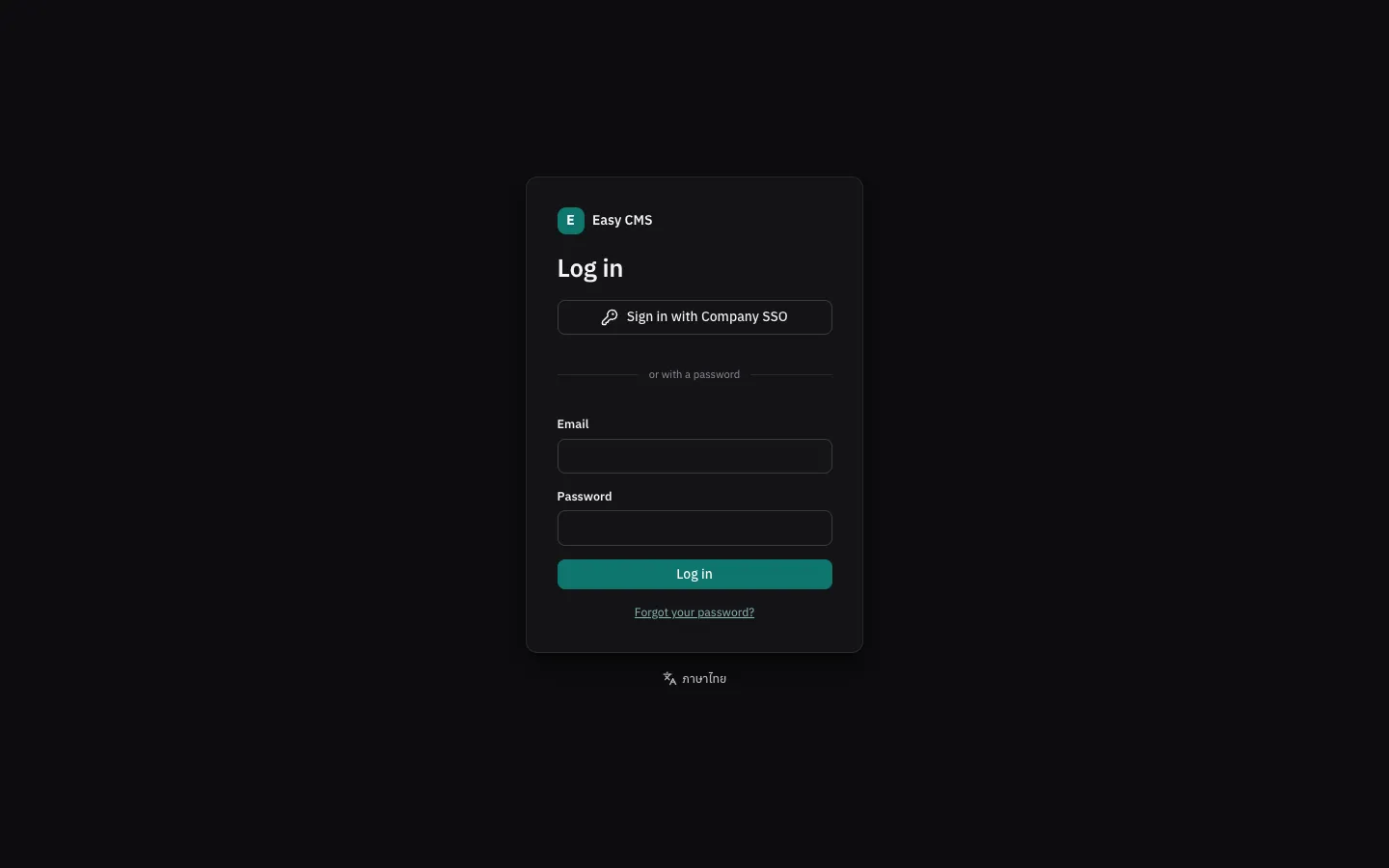
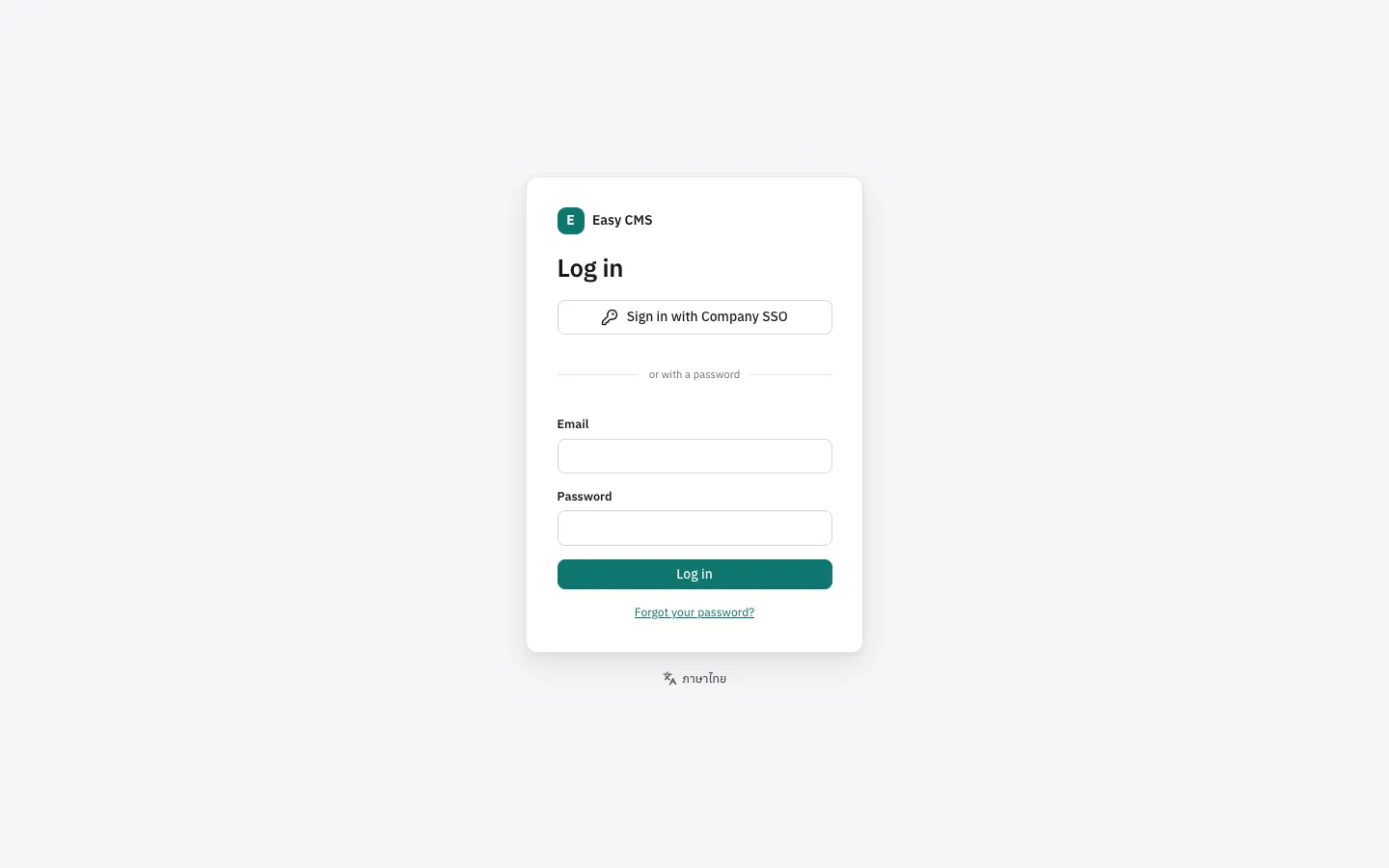
Install the providers package and add them to the config:
npm install @easy-cms/auth-oauthpnpm add @easy-cms/auth-oauthyarn add @easy-cms/auth-oauthbun add @easy-cms/auth-oauthimport { github, google, microsoft } from '@easy-cms/auth-oauth'
export default defineConfig({
serverURL: 'https://cms.example.com', // needed in production, for the callback URL
auth: {
providers: [google()], // reads GOOGLE_CLIENT_ID and GOOGLE_CLIENT_SECRET
},
// …
})The login page gets a Sign in with Google button. The provider sends people back to
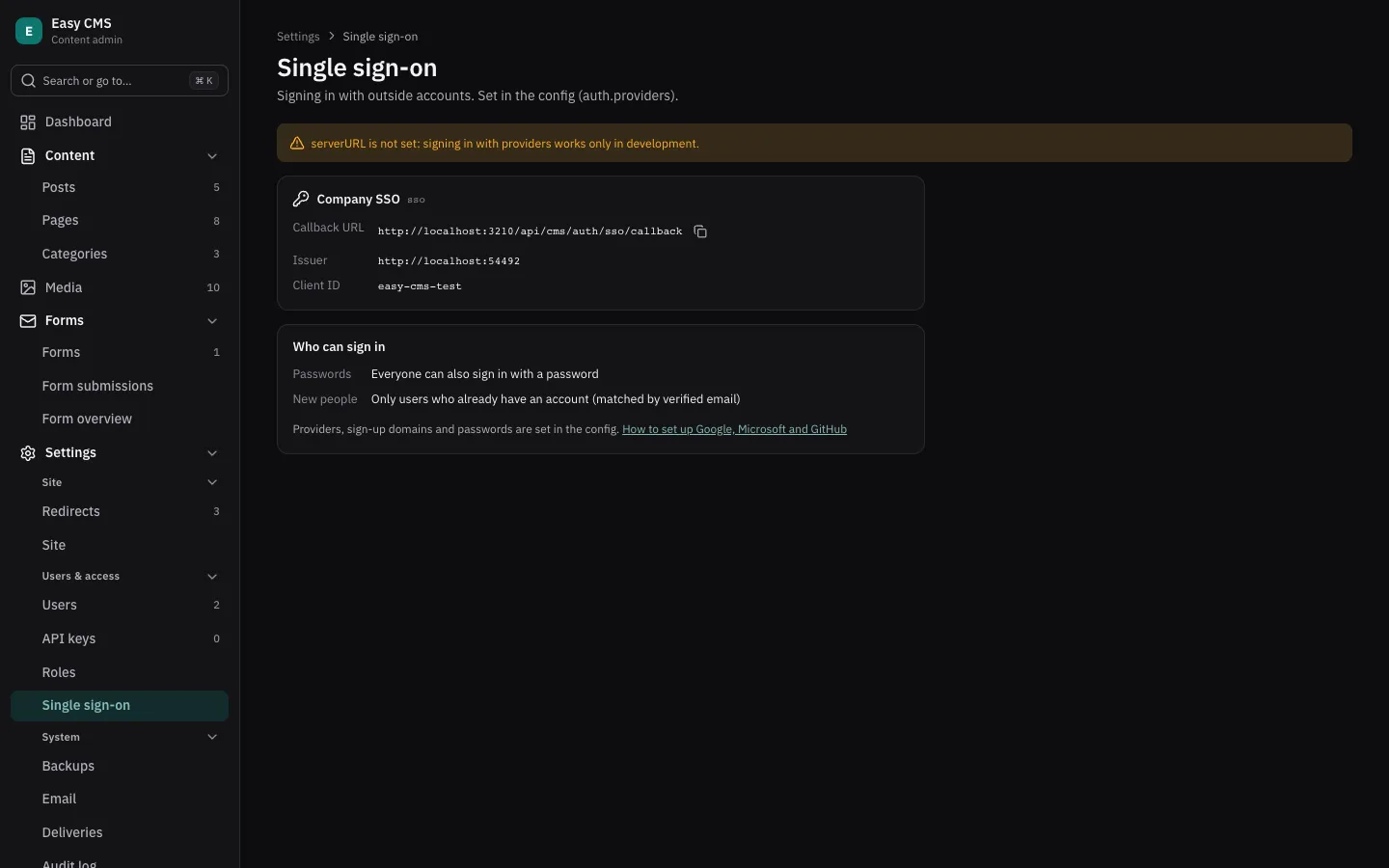
<serverURL>/api/cms/auth/<id>/callback, e.g. https://cms.example.com/api/cms/auth/google/callback:
give that URL to the provider (Settings → Single sign-on shows it, with a copy button). Single
sign-on is for the admin; your site's visitors are not affected.
Turning providers on adds the user-identities table: create a migration
(npx easy-cms migrate:create sso).
Who gets in
-
People who already have an account, matched by their email. Only emails the provider has verified count. After the first time, the provider's own id for the account is used, so a changed email at the provider doesn't matter.
-
People from your domains, when you allow it: they get an account the first time they sign in.
auth: { providers: [google()], allowSignUp: { domains: ['example.com'], role: 'editor' }, // never 'admin' }, -
Nobody else: an unknown email lands back on the login page with a message to ask an admin.
-
Deactivated users can't sign in, whatever the provider says.
To add someone, create their user in Settings → Users (with their work email) and tell them to sign in with the provider. With email set up, invite them as usual.
Passwords
By default people can sign in either way. To make everyone use the provider:
auth: { providers: [google()], password: false },Then only admins can still use a password, as a way in when the provider is down; the login page folds the password form away for them. Invitations tell people to sign in with the provider instead of setting a password, and "forgot password" works only for admins.
Linking accounts
On their Account page, people see the outside accounts they sign in with, can link another provider (Link GitHub) and unlink one. The last way into an account can't be unlinked. Admins see and unlink a user's accounts on the user's page. Deleting a user forgets their linked accounts.
Setting up providers
- In the Google Cloud console, create an OAuth client ID of type Web application (set up the consent screen first if asked; for a Google Workspace, choose Internal).
- Add the callback URL under Authorized redirect URIs, e.g.
https://cms.example.com/api/cms/auth/google/callback(andhttp://localhost:3000/api/cms/auth/google/callbackfor development). - Set
GOOGLE_CLIENT_IDandGOOGLE_CLIENT_SECRET, and usegoogle(). For a Workspace,google({ hd: 'example.com' })opens the account chooser on your domain.
Microsoft (Entra ID)
- In the Entra admin center, App registrations → New
registration: accounts in this organizational directory only; redirect URI of type Web:
https://cms.example.com/api/cms/auth/microsoft/callback. - Under Certificates & secrets, create a client secret.
- Set
MICROSOFT_TENANT_ID(the Directory (tenant) ID),MICROSOFT_CLIENT_ID(the Application (client) ID) andMICROSOFT_CLIENT_SECRET, and usemicrosoft().
Entra ID doesn't mark emails as verified; your organization manages them, so they count as verified. Users are matched by their email, or their user principal name when it is one.
GitHub
- In GitHub, Settings → Developer settings → OAuth Apps → New OAuth App, with the
callback URL
https://cms.example.com/api/cms/auth/github/callback. - Generate a client secret, set
GITHUB_CLIENT_IDandGITHUB_CLIENT_SECRET, and usegithub().
People are matched by the primary, verified email of their GitHub account. For GitHub Enterprise
Server: github({ server: { web: 'https://github.example.com', api: 'https://github.example.com/api/v3' } }).
Any OpenID Connect provider
Okta, Keycloak, Auth0, Authentik, Zitadel and others:
import { oidc } from '@easy-cms/auth-oauth'

oidc({
  id: 'okta', // in the callback URL: <api>/auth/okta/callback
  name: 'Okta', // on the button
  issuer: 'https://example.okta.com',
  clientId: process.env.OKTA_CLIENT_ID ?? '',
  clientSecret: process.env.OKTA_CLIENT_SECRET,
})
The provider's /.well-known/openid-configuration is read for its endpoints. Its ID token needs
email and email_verified (the email scope).
How it is kept safe
- The Authorization Code flow with PKCE, a
stateand (OpenID Connect) anonce, kept in a short-lived signed cookie; ID tokens are verified with the provider's keys (oauth4webapi). - After signing in, people only go back to pages of the admin.
- Linking an account needs the session and its CSRF token, and an account already linked to someone else can't be linked again.
- Client secrets stay in environment variables, never in the database or backups.
Next steps
- Roles from the admin: what each person may do once they're in.
- Security: what else is protected.